
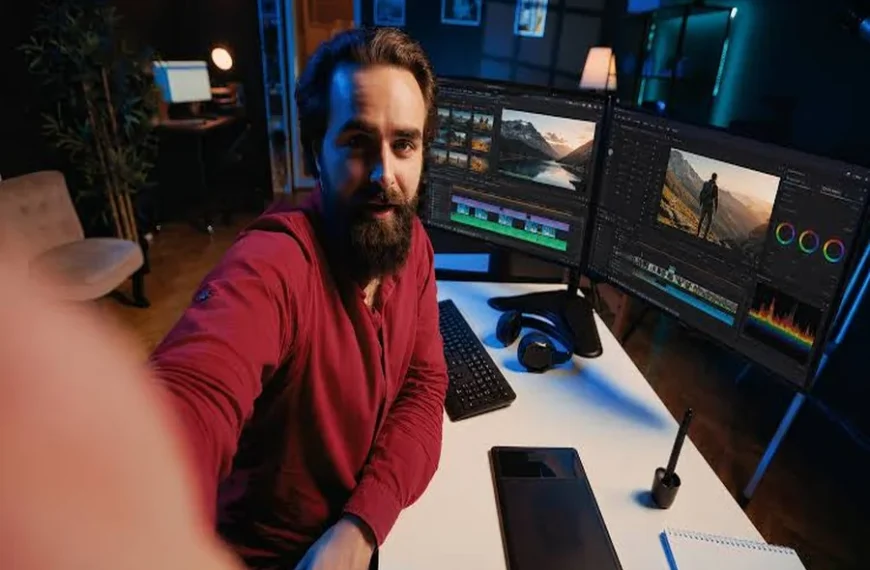
Creating professional video content can seem expensive. Small businesses often assume they need a full production team, expensive cameras, and premium editing software before they can publish anything worth watching. In reality, a smartphone, a clear idea, and the right free editor are enough to create useful videos for social media, websites, email campaigns, and online stores.
The biggest challenge is finding editing software that is genuinely free and does not place a watermark over the finished video. A watermark can make a business video look unfinished and distract viewers from the message. Fortunately, several free editors now offer practical tools without forcing small businesses to pay for every export.
Why Video Matters for Small Businesses
Video helps businesses explain products, answer customer questions, and build trust quickly. A short demonstration can show how a product works more effectively than a long paragraph. A customer testimonial can also feel more personal than a written review.
Video is useful across many channels:
- Short social media posts
- Product demonstrations
- How-to tutorials
- Behind-the-scenes content
- Customer testimonials
- Website introductions
- Online advertisements
- Training videos for employees
The goal is not to produce a movie. The goal is to communicate one useful idea clearly. A simple, well-edited video often performs better than a complicated production with too many effects.
Start with a Free Editor Without a Watermark
Before recording anything, choose an editor that matches your technical ability and publishing needs. If you are looking for a simple place to begin, try a free video editor no watermark, especially one that supports your preferred device and export format.
Look for these features:
- Watermark-free exports
Confirm that the free plan does not add a logo or branded ending to your video. - Basic trimming and splitting
These tools allow you to remove pauses, mistakes, and unnecessary sections. - Text and captions
Captions make videos easier to understand, especially when people watch without sound. - Music and audio controls
You should be able to adjust background music and keep speech clear. - Simple transitions
A few clean cuts or fades are usually enough. Too many transitions can make a video feel distracting. - Multiple aspect ratios
Vertical video works well for mobile platforms, while horizontal video is better for websites and presentations. - Reliable export quality
The editor should let you save a clear video without making the image look blurry.
A free editor does not need hundreds of advanced features. For most small businesses, speed and simplicity are more valuable than a large collection of complicated tools.
Plan the Video Before You Record
Good editing begins with good planning. Write a short outline before opening the camera. A basic structure might include:
- A strong opening
- The main problem
- The solution
- One or two useful details
- A clear next step
For example, a local bakery could create a video titled “How We Keep Our Bread Fresh.” The opening might show a freshly baked loaf. The middle could explain the baking and storage process. The ending could invite viewers to visit the shop or place an order.
Keep each video focused on one topic. If you try to explain five different ideas in one clip, the result may feel confusing. A series of short videos is often more effective than one long video.
Use the Equipment You Already Have
A smartphone is usually enough for small business video. Before recording, clean the camera lens and place the phone on a stable surface. A small tripod is helpful, but a stack of books can also keep the camera steady.
Lighting has a major effect on quality. Try to face a window or use a bright lamp positioned in front of the subject. Avoid placing a strong light directly behind you, because it can make your face or product appear too dark.
Sound is just as important as image quality. Record in a quiet room and move away from air conditioners, loud appliances, and busy roads. If you do not have an external microphone, keep the phone close to the speaker.
Record a few extra seconds before and after each shot. This makes it easier to trim clips cleanly during editing.
Edit for Clarity, Not Complexity
The first editing step is removing anything that does not help the viewer. Cut long pauses, repeated sentences, accidental movements, and unrelated footage. A shorter video usually feels more confident and is easier to watch.
Next, arrange the clips in a logical order. The viewer should understand what is happening without needing to replay the video. Add text only when it improves understanding. For example, text can identify a product, show a price, highlight a step, or summarize a key point.
Keep text large enough to read on a phone. Use a simple font and strong contrast between the letters and the background. Avoid placing important text near the edges, where platform controls may cover it.
Captions are especially valuable for social media. Many people watch videos with the sound turned off. Captions also make your content more accessible to viewers who are deaf or hard of hearing.
Choose Music Carefully
Background music can give a video energy, but it should never compete with the speaker. Lower the music volume whenever someone is talking. If the music sounds louder than the message, viewers may stop watching.
Use music that you have permission to use. Some free editors include built-in music libraries, while others allow you to import royalty-free tracks. Read the licensing terms before using a song in a paid advertisement or promotional campaign.
For instructional videos, light background music may be enough. For customer testimonials or detailed explanations, no music may be the better choice.
Create a Consistent Brand Style
A consistent visual style helps people recognize your business. You do not need a professional brand guide to get started. Choose one or two fonts, a small color palette, and a simple logo placement.
Use the same style for:
- Opening titles
- Caption colors
- Product labels
- Closing screens
- Calls to action
Consistency saves time because you can reuse the same editing structure for future videos. It also makes a small business appear more organized across different platforms.
Export the Right Version
Before exporting, check where the video will be published. A vertical video is usually suitable for short-form mobile platforms. A square format may work well in social feeds, while a horizontal format is often better for websites and video presentations.
Watch the exported file from beginning to end. Check for spelling mistakes, awkward cuts, missing audio, and captions that disappear too quickly. Make sure the final frame does not show an unwanted editor logo or watermark.
Keep a high-quality master copy so you can create new versions later. You may want to remove a platform-specific ending, change the call to action, or create a shorter cut for another channel.
Promote the Video Without Spending Money
Publishing the video is only the beginning. Share it through your existing customer channels:
- Add it to your website
- Post it on social media
- Include it in an email newsletter
- Send it to interested customers
- Use it in a product listing
- Ask employees to share it
- Repurpose clips into shorter posts
You can also turn one longer recording into several pieces of content. A five-minute tutorial might become three short clips, a collection of still images, and a written FAQ.
Track basic results such as views, watch time, comments, clicks, and inquiries. Do not focus only on high view counts. A video with a smaller audience may still be valuable if it brings qualified customers to your business.
Common Mistakes to Avoid
Small businesses often make a few predictable mistakes when producing low-budget video. The first is trying to make every video perfect. Waiting for perfect equipment or a perfect location can prevent you from publishing anything.
The second mistake is using too many effects. Animations, stickers, filters, and transitions may seem exciting, but they can hide the main message. Use effects only when they serve a clear purpose.
Another mistake is forgetting the call to action. Tell viewers what to do next. They might visit your website, request a quote, sign up for an email list, book an appointment, or visit your store.
Finally, avoid copying trends that do not fit your business. A trend may attract attention, but useful and relevant content is more likely to build long-term trust.
A Practical Zero-Budget Workflow
A simple workflow can make video production manageable:
- Choose one customer question or business goal.
- Write a short outline.
- Record several takes with your phone.
- Select the clearest clips.
- Remove mistakes and long pauses.
- Add captions and limited branding.
- Balance the audio.
- Export without a watermark.
- Watch the final file.
- Publish and track the response.
This process becomes faster with practice. After creating a few videos, you will know which angles, lighting setups, and editing templates work best for your business.
Final Thoughts
Small business video does not require a large budget. A phone, natural light, clear audio, and a reliable free editor can produce content that looks clean and professional. The most effective videos focus on helping the viewer rather than showing off complicated production techniques.
Choose a watermark-free editor, plan one message at a time, keep the editing simple, and publish consistently. Over time, these small efforts can help your business explain its value, connect with customers, and compete online without taking on expensive production costs.


