
Having YouTube on a Huawei device running HarmonyOS enhances entertainment options and connects users to a vast array of content. While HarmonyOS offers a distinct approach to operating systems, users might face challenges finding certain apps due to restrictions. If you’re wondering how to install youtube on huawei, this guide provides a clear pathway to successfully installing YouTube, ensuring you don’t miss out on your favorite videos. Whether you’re new to HarmonyOS or just looking for a reliable method, follow these steps to seamlessly incorporate YouTube into your device’s app lineup.
What is HarmonyOS and AppGallery?
HarmonyOS Overview
Huawei developed HarmonyOS as an innovative platform differing from traditional Android systems. Designed to power a range of smart devices, it offers a seamless user experience while emphasizing speed and connectivity. HarmonyOS is structured to deliver efficient performance and integrates effortlessly with other Huawei products within the ecosystem.
AppGallery Role in Installing Apps
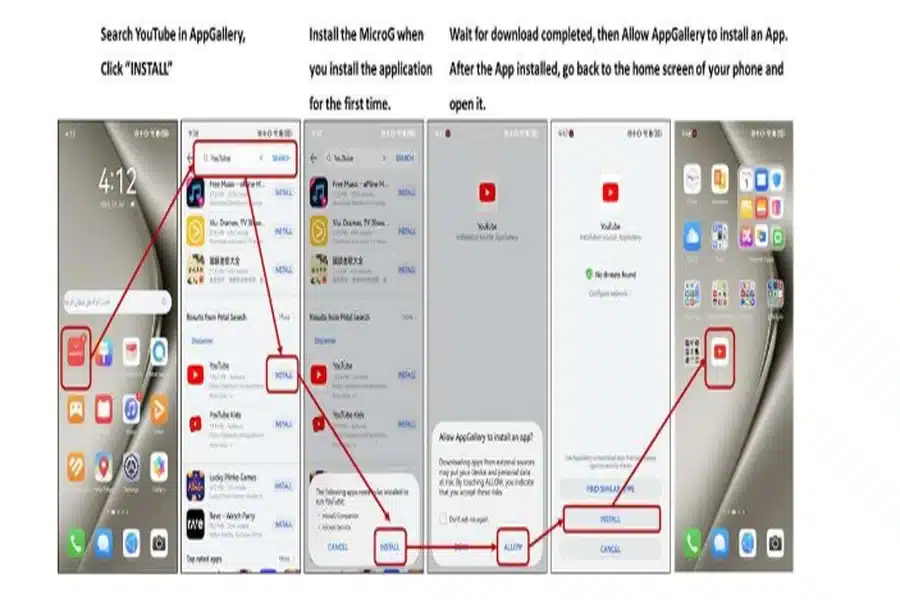
AppGallery is Huawei’s official app store, serving as the primary hub for downloading applications on HarmonyOS devices. It provides users with a wide selection of apps and alternatives to popular services usually found on Android or iOS. Although its offerings grow daily, some apps like YouTube may not be directly available due to Huawei’s restrictions on Google Mobile Services (GMS). In these instances, users must explore alternative installation methods, such as APKs.
Can You Get YouTube via AppGallery?
Checking Official AppGallery Availability
Currently, YouTube is not directly available in Huawei’s AppGallery due to licensing and GMS issues, which restrict many Google services. Users are encouraged to search regularly for updates that might introduce Google services apps to the store or make access easier. Despite these limitations, AppGallery remains a robust and growing marketplace with many alternative applications to support daily tasks like video playback, messaging, and productivity features on HarmonyOS devices.
Limitations Without Google Mobile Services
Without GMS, devices running HarmonyOS do not inherently support many Google-based applications, including YouTube, Gmail, and Google Maps. This lack limits direct access to applications like YouTube within the AppGallery or native functionality. Users must rely on creative solutions, such as installing APKs or using third-party services, to bridge this gap and enjoy Google apps on their devices. It’s important to follow secure methods and ensure app sources are verified to avoid vulnerabilities.
How to Install YouTube APK on HarmonyOS
Step 1: Enable “Unknown Sources”
Begin by unlocking your device and navigating to the settings. Locate the “Security” tab, and select “Permissions management.” This area allows you to manage app permissions effectively, especially for apps installed outside the AppGallery. Here, you will find an option titled “Install apps from unknown sources.” Toggle this option on to proceed; it is necessary for installing APK files from outside the AppGallery. Be cautious about enabling this permanently to maintain device security after you complete the installation process safely.
Step 2: Download and Install YouTube APK
Next, open a browser and search for a reputable source providing YouTube APK files, such as APKMirror or APKPure. Download the latest version compatible with your HarmonyOS system. Once the download completes, tap the APK file in the notification bar or Downloads folder. A prompt will appear requesting permission to install the application; confirm it to initiate the installation process. After a few moments, YouTube will be successfully installed and available for use like any other native app on your device.
Installing Google Mobile Services & GMS Hacks
Using Gbox or Easy Abroad Containers
To enhance app functionality, Gbox or Easy Abroad containers offer solutions for installing Google Mobile Services on HarmonyOS devices. These containers act as intermediaries, simulating the GMS environment necessary for some apps to run smoothly and access features like notifications or syncing. Install these from trusted third-party providers and follow the setup instructions included with the container to embed essential services on your device. Test functionality with common apps like YouTube or Gmail afterward.
Step-by-step Using Community Tips
Huawei’s user community on forums like consumer.huawei.com has shared numerous tips to streamline this process. Many users have had success by first installing a GMS-enabled container app and then following specific configuration steps detailed in the community discussions. Access these forums for user-driven advice and detailed guides to optimize your installation and ensure app functionality. Updates to these methods are common, so checking frequently ensures compatibility with the latest HarmonyOS versions and security improvements.
Conclusion
Integrating YouTube on Huawei HarmonyOS requires understanding alternative installation methods like APKs and GMS simulations. This guide offers robust, community-verified solutions that make the process straightforward and secure. By following these steps, you ensure access to YouTube and enhance your HarmonyOS experience without missing out on essential digital content. Whether using AppGallery alternatives or leveraging third-party solutions, staying informed about updates ensures optimal device utilization.


